ChatGPT Images 2 Masters Visual Creation
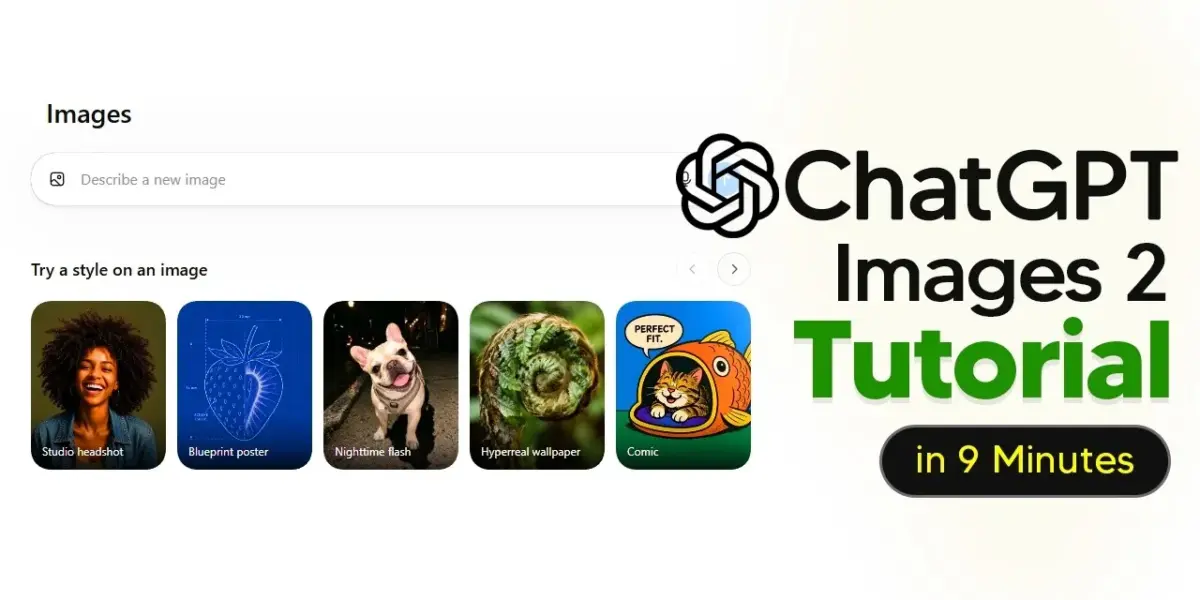
OpenAI's ChatGPT Images 2.0 now offers advanced features like precise image editing, document-to-visual conversion, and detailed instruction following. It acts more like a visual assistant, capable of researching and designing complex graphics from simple prompts.

ChatGPT Images 2 Masters Visual Creation
OpenAI’s latest image generation tool, ChatGPT Images 2.0, is showing impressive new abilities. It can now understand complex instructions, edit specific parts of images, and even turn documents into visual presentations. This update moves the tool beyond simple image creation, acting more like a visual assistant.
For beginners, the tool offers templates to guide image style. However, these templates only influence the look, not the main subject.
Users can upload an image to show a style, but the tool uses the text prompt to create the actual image content. Understanding this difference is key to getting the results you want.
Precise Editing and Aspect Ratios
A significant upgrade is the ability to edit specific parts of an image. Instead of trying to describe a change, users can select an area and tell the AI what to replace or add.
This makes editing much more accurate and saves time. For example, you can select a part of an image and ask it to be replaced with a tail.
The tool also handles aspect ratios better now. While it doesn’t have a default setting before generating an image, users can specify it in the prompt or adjust it afterward. ChatGPT Images 2.0 generally preserves image quality when changing sizes, making it easier to adapt images for different platforms like Instagram.
Beyond Simple Prompts: Research and Design
ChatGPT Images 2.0 can do more than just create images from descriptions. It can research, gather references, and conceptualize information before generating a visual.
Instead of asking for an ad for OpenAI merch, a better prompt would be to research recent merch drops, identify rare items, estimate their value, and then create a mock-up advertisement with accurate branding. This gives the AI a clear job to perform.
This advanced capability turns users into designers who can browse the internet for ideas. The difference is clear in the final output, which is much more polished and thought-out. This approach helps users get more impressive results by treating the AI as a creative partner.
Mastering Detailed Instructions
The model is excellent at following detailed instructions, but it needs clear prompts. Vague requests lead to less accurate results.
OpenAI demonstrated this by showing how the AI can place specific words in exact locations or draw clocks with precise times. Previously, models often defaulted to common settings, like a clock showing 10:10.
A recommended prompt structure involves specifying the subject, exact locations for objects, and precise text. For instance, asking for a photorealistic object with a red apple in the center and a coffee mug to its right.
This method tests the AI’s ability to follow instructions accurately, ensuring precise placement and content. The AI successfully followed a complex set of instructions, placing objects exactly as requested.
Why This Matters
For content creators, this level of control is incredibly useful. It’s perfect for creating thumbnail layouts, product mock-ups, comparison graphics, or before-and-after visuals where exact placement is crucial. The ability to precisely control elements within an image opens up new possibilities for visual storytelling and marketing materials.
This advanced instruction-following capability means creators can generate highly specific visuals without needing extensive graphic design skills. It democratizes the creation of complex visual assets, making professional-looking graphics accessible to a wider audience.
From Documents to Presentations
One of the most powerful new features is the ability to generate multiple consistent outputs that work together. ChatGPT Images 2.0 can take a document, like a PDF research paper, and turn it into a series of cohesive slides. This includes creating clear titles, explanatory text, diagrams, and maintaining consistent typography and style across all slides.
Users can upload a PDF and prompt the AI to create slides covering main contributions, methods, results, and limitations. The generated slides are high-quality, even in 2K resolution, and hold up well when zoomed in. This transforms dense information into easily digestible visual content.
A Visual Coworker
This capability extends beyond research papers. You can use it for YouTube scripts, blog posts, product pages, or even your own notes.
The AI can understand the content and transform it into teaching materials or visual summaries. It starts to feel less like a simple image generator and more like a visual coworker that can process and present information.
To get the best results, it’s important to prompt the AI with specific layout instructions. For example, asking for an infographic with a headline, diagram, labels, and a summary box. The AI can then create visuals that match the requested style and structure, further enhancing its utility as a design assistant.
Transparent Icons and Efficiency
ChatGPT Images 2.0 can also create PNG transparent icons. Users can request an icon of an object, like a football, and receive a transparent image that can be directly imported into editing software. This saves the time typically spent on background removal tools.
The speed of image generation is also notable. The ability to quickly create transparent assets directly within the tool streamlines the workflow for designers and content creators. This feature is particularly useful for those who frequently use image editing software like Photoshop.
OpenAI has made a free PDF guide available with more details on use cases and advanced prompts. This resource can help users maximize the potential of ChatGPT Images 2.0 and explore its full range of capabilities. The guide covers everything from basic prompts to advanced structures for experienced users.
Source: ChatGPT Images 2 Tutorial For Beginners (With New Tips And Tricks) (YouTube)

Related Articles

Florida AG Probes ChatGPT in FSU Shooting Investigation
Florida's Attorney General has launched a criminal investigation into OpenAI, questioning if ChatGPT provided advice to a suspect in the deadly Florida State University shooting. The AG is subpoenaing the company, stating that human advice of this nature would lead to murder charges. OpenAI denies responsibility, arguing the chatbot offers factual internet information and does not promote illegal acts.

OpenAI Unveils ChatGPT Images 2.0 with Advanced Intelligence
OpenAI has launched ChatGPT Images 2.0, a major upgrade to its AI image generator. The new version features 'thinking mode' for complex prompts, improved photorealism, and enhanced text rendering in multiple languages. It's available now to all users.
OpenAI Hints at GPT-5.5’s Smarter, Faster AI Future
OpenAI's upcoming AI model, possibly GPT-5.5 "Spud," is set to offer significant improvements in understanding, speed, and problem-solving after a two-year development cycle. Early previews suggest enhanced capabilities in coding, reasoning, and native multimodality, aiming to make AI a more autonomous digital worker.