Bloatware Devours Your PC Performance: We Tested It
A new test reveals how accepting every bloatware prompt on a fresh PC can cripple performance, increase boot times by minutes, and drastically hike power consumption. Gaming PCs are particularly vulnerable.

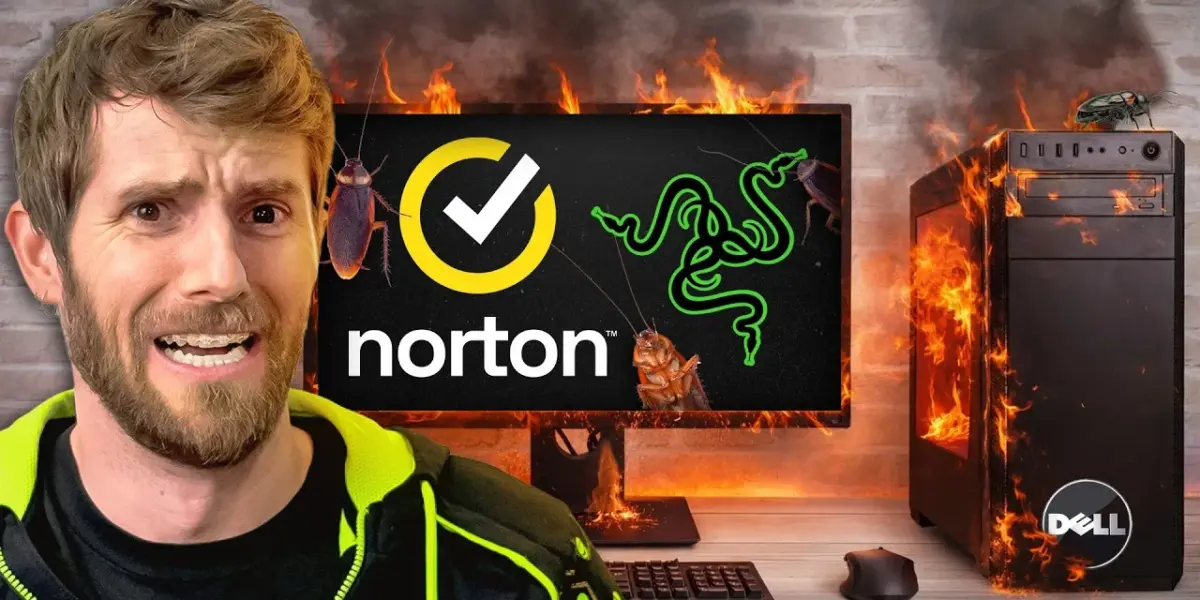
Bloatware Devours Your PC Performance: We Tested It
In the relentless pursuit of PC performance, every megabyte of RAM and every clock cycle counts. Yet, a silent menace lurks within many new machines, consuming precious resources without your explicit consent: bloatware.
A recent experiment, backed by Threat Locker, dives deep into how these pre-installed and often unsolicited applications impact system performance, boot times, and even power consumption. The results are eye-opening, revealing that saying “yes” to every pop-up can have a significant, detrimental effect.
The Experiment: A New Dell PC Under Siege
To quantify the impact of bloatware, a brand-new Dell Tower Plus desktop was subjected to three distinct scenarios. First, it was tested in its out-of-the-box, factory-bloated state.
Second, the system was meticulously cleaned of unwanted applications. Finally, for a more extreme test, the system was deliberately loaded with as much “value-added” software as possible within an hour, essentially accepting every prompt for additional software, from security suites like McAfee to peripheral control software like Razer Synapse.
The baseline comparison involved the factory-bloated Dell against its cleaned-up counterpart. Even the “clean” installs included Adobe Creative Cloud and Steam, as these are part of the testing suite. The findings, while not catastrophic for basic use, revealed tangible performance drops and increased resource consumption.
Factory Bloat: A Subtle Drain
In its factory-configured state, the Dell PC exhibited a slight, consistent drop in performance across synthetic and productivity benchmarks compared to its cleaned-up version. For gaming, specifically in Cyberpunk, no measurable difference was observed. However, the impact wasn’t entirely invisible.
Idle power consumption saw a 7% jump, translating to an extra 2.5 watts constantly being drawn. More noticeably, the bloat-laden configuration added about 30 seconds to the full boot time, along with minor annoyances like extra system tray icons and McAfee’s constant monitoring prompts.
The core question arises: why would manufacturers intentionally degrade the user experience? The answer, as is often the case, is financial. Historically, pre-installed software offered convenience and differentiation.
However, over time, this evolved into trialware and, eventually, systems acting as ad delivery platforms. With slim profit margins in the PC market (excluding Apple), manufacturers leverage these add-ons to strengthen profits. A 2008 report by InfoWorld highlighted Sony charging $50 for a “fresh start” option to remove pre-installed junk, indicating that these add-ons carry significant financial weight, often through recurring subscriptions or upsells.
The “Say Yes To Everything” Challenge
The experiment escalated with the “say yes to everything” phase. This involved accepting every offer for additional software during installation, even when redundant or questionable.
While some installers, like Firefox, were straightforward, others, such as McAfee, pushed their web advisor. The process of installing 25 applications took about an hour, transforming download and program folders into a chaotic mess and filling the system tray with numerous icons.
The performance impact became more pronounced here. A noticeable drop of 2-8% was observed in benchmarks compared to the clean system.
Boot times increased by over half a minute, and idle power draw crept up by another watt on average. While gaming performance remained unaffected, the cumulative effect of these minor slowdowns could add up significantly over a project.
Gaming Peripherals: The Ultimate Bloatware Gauntlet
The most extreme scenario involved installing software for gaming peripherals, notorious for their resource-intensive utilities and accompanying extras. Plugging in an MSI keyboard triggered prompts for its driver utility, Dropbox, Redeem Launcher, MSI Center, Voice Mod, and Norton 360.
This led to a cascade of security software installations, with McAfee, Avast, Malware Bytes, Norton 360, and Norton 360 for Gamers all attempting to run alongside Windows Defender. This is a configuration that security experts strongly advise against.
The situation further deteriorated with ASUS’s Armory Crate and Corsair’s iCUE, which not only added more software but also necessitated system restarts. After another hour, with eight peripherals and their associated software installed, the system’s performance took a significant hit. Benchmarks showed a nearly 16% drop in some workloads, equivalent to a CPU downgrade.
Gaming performance also suffered, with 1440p frame rates dropping by nearly 10% in 1% lows. Cyberpunk with ray tracing experienced horrific frame pacing issues, halving the 1% lows.
The power consumption surge was staggering. Idle power draw climbed from 38 watts to 61 watts, a 60% increase.
Boot times ballooned to nearly 4 minutes. The experiment highlighted how a mishmash of peripheral software, especially from different ecosystems, can severely penalize users.
Threat Locker: A Potential Solution?
The final phase involved uninstalling all bloatware and installing Threat Locker, a security solution designed to prevent unwanted installations. The concern was whether the cure would be worse than the disease.
Threat Locker demonstrated that it could be added to a system without an appreciable difference in boot times. While it did introduce a slight increase in idle power draw compared to a completely clean system, it was significantly less than the impact of the gaming peripheral bloatware.
In productivity tests, Threat Locker had negligible effects while offering its security benefits. Its ring-fencing technology would actively block unauthorized application behavior. For gaming, there were no significant performance hits.
Threat Locker’s learning mode allows administrators to automatically whitelist necessary software, minimizing productivity impact. Its elevation control provides temporary privileges, preventing users from granting excessive system access.
Who Should Care and Why?
This experiment is crucial for anyone purchasing a new PC, especially those who are not technically inclined to clean up pre-installed software. Gamers, in particular, should be wary of the cumulative impact of peripheral software.
The findings also serve as a cautionary tale for IT administrators who manage corporate fleets, where users might exhibit the same “say yes to everything” behavior. Threat Locker positions itself as a tool for organizations to maintain clean, performant, and secure systems.
The takeaway is clear: pay attention to software installations. Avoid mindlessly clicking “yes” and monitor your system tray for unnecessary background processes.
For RGB enthusiasts, consolidating control with a unified program like OpenRGB can help minimize overhead. Ultimately, understanding the hidden costs of bloatware empowers users to make more informed decisions and protect their system’s performance.
Specs & Key Features
- Test System: Dell Tower Plus desktop with 16GB RAM
- Scenarios Tested:
- Factory bloatware
- Clean install
- “Say yes to everything” install (including McAfee, Razer Synapse, Adobe CC, Steam, CCleaner, Avast, MSI Center, Voice Mod, Norton 360, Armory Crate, Corsair iCUE)
- Clean install with Threat Locker
- Metrics Measured: Synthetic benchmarks, productivity benchmarks, gaming performance (Cyberpunk, 1440p), boot times, idle power consumption.
- Key Bloatware Examples: McAfee, Razer Synapse, CCleaner (with bundled software), Avast Antivirus, Norton 360, MSI Center, Armory Crate, Corsair iCUE.
- Threat Locker Features: Prevention of unwanted installs, ring-fencing, learning mode (auto-allow listing), elevation control.
Availability and Pricing:
Specific pricing for the Dell Tower Plus desktop was not detailed. Threat Locker’s pricing and availability for enterprise solutions were mentioned, but consumer-level pricing was not specified.
Source: I said YES to every Bloatware Pop-up (YouTube)

Related Articles


Gaming Handhelds: Legion Go vs. Xbox Ally Show Value Gap
The gaming handheld market presents a stark contrast in price and performance between the Lenovo Legion Go and the Xbox Ally. While the Legion Go boasts premium features, its cost can soar to $3,000, making the $500 Xbox Ally a far more sensible choice for most gamers seeking portable PC gaming.


PC Built Mid-Air: World Record Set 40,000 Feet Up
A team has set a world record by building a gaming PC at 40,000 feet. They carefully selected power-efficient components like the Ryzen 5 9600X and RTX 4060 Ti. The build faced challenges with limited aircraft power and unreliable Wi-Fi.


Gaming Handheld Cameras: From Game Boy to Switch
From the grainy shots of the Game Boy Camera to the 3D capabilities of the 3DS and the external webcam for the Switch, this is how cameras on gaming handhelds have evolved. We explore the unique features and target audiences for each device's imaging technology.