TikTok Tech Hacks Face Scrutiny: Separating Fact from Fiction
A new series, 'Tech Court,' is putting popular TikTok tech hacks to the test, separating genuine innovation from dangerous misinformation. From flawed cooling solutions to malicious file deletions, the scrutiny reveals a mixed bag of advice.

TikTok’s Tech Tips Under the Microscope: Is the Platform a Source of Innovation or Misinformation?
In the fast-paced world of short-form video, TikTok has become an undeniable force, not just for entertainment, but also for information – including technology tips. However, the platform’s rapid-fire delivery and viral nature often lead to a deluge of content that ranges from genuinely helpful to outright misleading. “Tech Court,” a new series, aims to sift through the digital noise, putting popular TikTok tech hacks to the test to determine their validity.
Peltier Cooler on a Threadripper? A Bold, Flawed Experiment
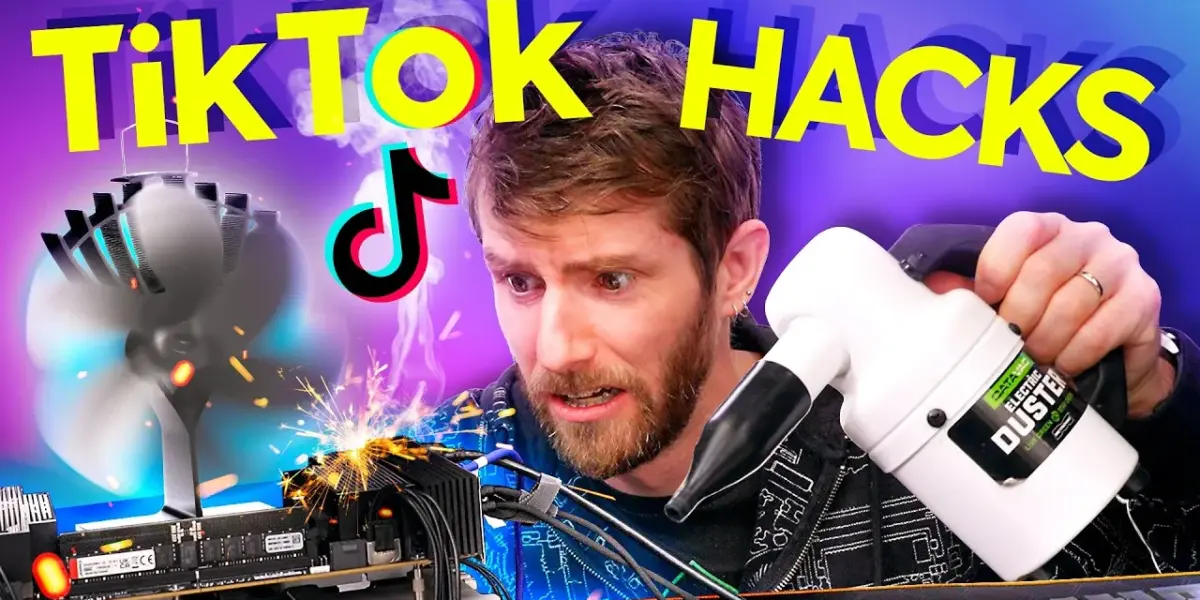
The series kicks off with a viral sensation: a user claiming to have successfully cooled a high-end CPU using a thermoelectric cooler (TEC), commonly known as a Peltier module, powered by its own heat. The presenter in the video, initially skeptical, recreates the setup with an identical CPU. The core of the hack involves a Peltier module sandwiched between the CPU’s heat spreader and a heatsink with a fan. The idea is that the heat from the CPU warms one side of the Peltier, generating a voltage that powers the fan, which in turn cools the other side of the Peltier, thus cooling the CPU. While a clever concept, the reality proved less effective. The presenter’s test, while surprisingly not resulting in immediate thermal throttling under load, highlighted the fundamental limitations of the approach. The surface area of the heatsink was vastly insufficient for a powerful CPU like the Threadripper, and the system was precariously close to overheating, pulling significant wattage. The verdict? Not guilty of spreading misinformation, as the core concept technically worked to a degree, but a strong cautionary tale about applying theoretical principles without considering practical engineering constraints.
Malicious Nvidia Cache Deletion: A Dangerous Misstep
Another popular TikTok hack involved deleting files from a supposed “hidden Nvidia folder” via the Windows Run command (Windows Key + R) to fix stuttering and boost FPS. The presenter unequivocally condemns this as malicious. The hack is fundamentally flawed because the specified path does not lead to a universally applicable “hidden Nvidia folder” containing cache files that can be safely deleted. In reality, users could be prompted to delete critical system files or, at best, do nothing. The presenter demonstrates that attempting to delete files from the actual folders that might be created by such a command has no positive impact on game performance. The verdict here is a resounding guilty. This type of advice can lead to system instability or data loss, underscoring the importance of understanding what commands do before executing them.
“God Mode” Folder: A Misleading Shortcut
A seemingly impressive hack involved creating a special folder with a specific name that, when clicked, supposedly opened a “god mode” control panel consolidating all Windows settings. While the trick does create a functional shortcut to a comprehensive settings menu, the presenter argues that calling it “god mode” is an exaggeration. Many essential settings, like display options and newer features such as HDR, are not present in this consolidated view. The presenter notes that while it consolidates many settings, it doesn’t replace the traditional Control Panel or the modern Settings app entirely, and some basic functions are missing. The verdict: guilty of overpromising. While functional, it’s not the all-encompassing control center it’s made out to be.
Retrieving Wi-Fi Passwords: A Tale of Two Methods
A hack demonstrating how to retrieve Wi-Fi passwords using the Windows Run command (typing `ncpa.cpl`) is put under the spotlight. The presenter points out several flaws: it’s not the fastest way to access network settings, and crucially, it requires the user to be logged into an administrator account. The video then contrasts this with the modern Windows 11 method, which is more intuitive and accessible through the Wi-Fi quick settings, allowing users to view their network password directly after authentication. The verdict: guilty. The presented method is convoluted, outdated, and doesn’t offer a significant advantage over built-in, user-friendly alternatives.
Disabling Unknown User Accounts: A Security Paradox
The advice to remove unknown user accounts from a PC via the command line to “unhack” it presents a curious paradox. The presenter highlights that if a PC is truly hacked to the point where unknown user accounts are created, the user likely wouldn’t have the administrative access needed to remove them in the first place. While the command itself is valid for managing user accounts, its application in this context is flawed. The verdict: guilty. The premise of the hack is logically unsound.
Windows Vista System Assessment Tool: A Relic of the Past
A TikTok tip suggests using PowerShell to run a command that displays a “system performance score,” claiming scores above eight are for high-end gaming. The presenter identifies this as the legacy Windows Vista System Assessment Tool (WinSAT). This tool, which was already considered somewhat useless even in its prime due to its inability to provide a balanced score for diverse use cases, is now entirely obsolete. The presenter notes that it was updated to go to 9.9 for Windows 8 but remains fundamentally flawed. The verdict: guilty. Relying on this outdated tool for performance assessment is misleading.
CPU Core Configuration and Process Priority: Risky Tweaks
Two related hacks involve modifying system settings for performance gains: changing the number of processors in `msconfig` and setting process priority for games. The presenter strongly advises against touching the processor count in `msconfig`, as it can lead to boot loops or blue screens if misconfigured, especially with modern CPUs featuring different core types (like Intel’s P-cores and E-cores). While adjusting process priority can sometimes help with specific troubleshooting, it’s generally not recommended for average users and won’t yield significant FPS boosts. Disabling startup apps, however, is acknowledged as a legitimate way to reduce boot times and RAM usage. The verdicts: guilty for manipulating processor count and process priority, and a mistrial for disabling startup apps, as it’s beneficial but not the dramatic FPS booster claimed.
Advanced Startup Command Prompt Hack: A Complex Recovery
A complex hack involves using the advanced startup command prompt to rename utility files (`util.dll` to `util.dll.bak` and `cmd.exe` to `util.dll`) to gain access to a PC when the password is forgotten. The presenter admits that this method, while convoluted, could potentially work for user account recovery. However, they also note that it’s far from the simplest or most straightforward way to achieve this. The presenter finds the process surprisingly fun. The initial verdict is innocent, but then reversed to guilty of “too much charisma,” implying the complexity and entertainment value overshadowed its practical efficiency as a quick tip.
Motion Blur vs. High Refresh Rate: A Visual Misconception
A TikTok creator attempts to illustrate the concept of a high refresh rate monitor by creating multiple cursor trails, suggesting it’s a way to experience higher refresh rates. The presenter clarifies that this is simply demonstrating motion blur and does not actually increase the monitor’s refresh rate. You cannot achieve a higher refresh rate on a lower refresh rate display. The verdict: guilty of misrepresenting the technology.
Adjusting for Best Performance: A Misleading Optimization
A common tip suggests selecting “adjust for best performance” in system settings to make Windows 11 run at maximum power. The presenter explains that while this setting doesn’t actually boost performance to its maximum potential, it does make the PC feel more responsive by disabling visual effects. They appreciate the honesty in the explanation but criticize the claim of achieving “maximum power.” The verdict: mistrial, as it offers a tangible benefit (responsiveness) but is inaccurately framed as a maximum power optimization.
Nvidia Services and NV Clean Install Utility: Nuanced Advice
The discussion touches upon disabling background Nvidia services and using the NV Clean Install Utility. The presenter acknowledges that disabling certain services, particularly features like continuous screen recording (ShadowPlay/Replay), might offer a slight performance improvement by reducing overhead, especially in graphically intensive scenarios. However, they emphasize that these features need to be user-enabled and that for most users, the impact is minimal. The NV Clean Install Utility is presented as a potentially useful tool for a clean driver installation, provided it’s downloaded from a trusted source like TechPowerUp. The verdict: hung jury on disabling services (potentially helpful but nuanced), and a positive nod to the NV Clean Install Utility when sourced correctly.
Fast Startup: A Double-Edged Sword
The video examines Microsoft’s “Fast Startup” feature, which is enabled by default. It’s explained as a hybrid shutdown/hibernation mode that speeds up boot times by saving the kernel and drivers. While it does accelerate boot-up, it can potentially lead to file system corruption or issues accessing the BIOS. The presenter notes that SSDs largely negate the need for this feature due to their inherent speed. The advice to disable it is deemed solid. The verdict: not guilty, as the potential for issues is real, though often overstated, and a simple restart bypasses the feature entirely.
Water Cooling Maintenance and PC Casters: Practical Tips
Two practical, non-misleading tips emerge: using a Datavac electric duster to empty a custom water cooling loop and placing a large PC case on casters. The presenter is impressed by the Datavac method for loop maintenance, finding it smarter than simply blowing on components. The idea of putting a heavy PC case on casters is also hailed as a “genius idea” for mobility. Both are deemed good, practical tech tips. Verdicts: not guilty.
Reliability History for Diagnosing Issues: A Valuable Tool
A tip from “Matt’s Computer Services” suggests using the Windows Reliability History tool to diagnose intermittent system errors. The presenter confirms this is an excellent and informative tool for tracking down such issues, even if it doesn’t log every single event. The content from Matt’s Computer Services is praised for its quality and knowledge. Verdict: guilty of being knowledgeable and awesome, with a playful sentence of receiving a free screwdriver.
Conclusion: A Mixed Bag of TikTok Tech Advice
Overall, the “Tech Court” series reveals that TikTok’s tech advice is a mixed bag. While some genuinely useful and clever tips emerge, a significant portion relies on exaggeration, outdated information, or potentially harmful practices. The presenter emphasizes the lack of explanation often accompanying these hacks as a major problem. The series serves as a crucial reminder for viewers to approach online tech tips with a critical eye, verify information from reliable sources, and understand the potential consequences before implementing any suggested changes.
Source: TikTok Tech Tips are TERRIBLE (YouTube)

Related Articles

Bloatware Devours Your PC Performance: We Tested It
A new test reveals how accepting every bloatware prompt on a fresh PC can cripple performance, increase boot times by minutes, and drastically hike power consumption. Gaming PCs are particularly vulnerable.

Boost Your Marketing ROI: Track Deal Cost, Not Lead Cost
Discover why tracking cost per lead (CPL) can be misleading and how to focus on cost per closed deal (CPD) for more accurate marketing ROI. Learn to analyze lead quality and optimize your budget for real revenue.


From $1 to $1M: Gaming Setups Explored
From a $1 Tetris game to a $1 million movie theater setup, this video explores the vast spectrum of gaming hardware. Discover budget-friendly handhelds, powerful PCs, immersive VR, and extreme sim rigs, culminating in an unparalleled cinematic gaming experience.