Google’s Gemma AI Runs Locally on Your PC
Google's new Gemma AI models can now be run locally on your own computer thanks to tools like Ollama. These powerful yet small models offer advanced capabilities, including image processing, and can be used for free, making cutting-edge AI more accessible than ever.

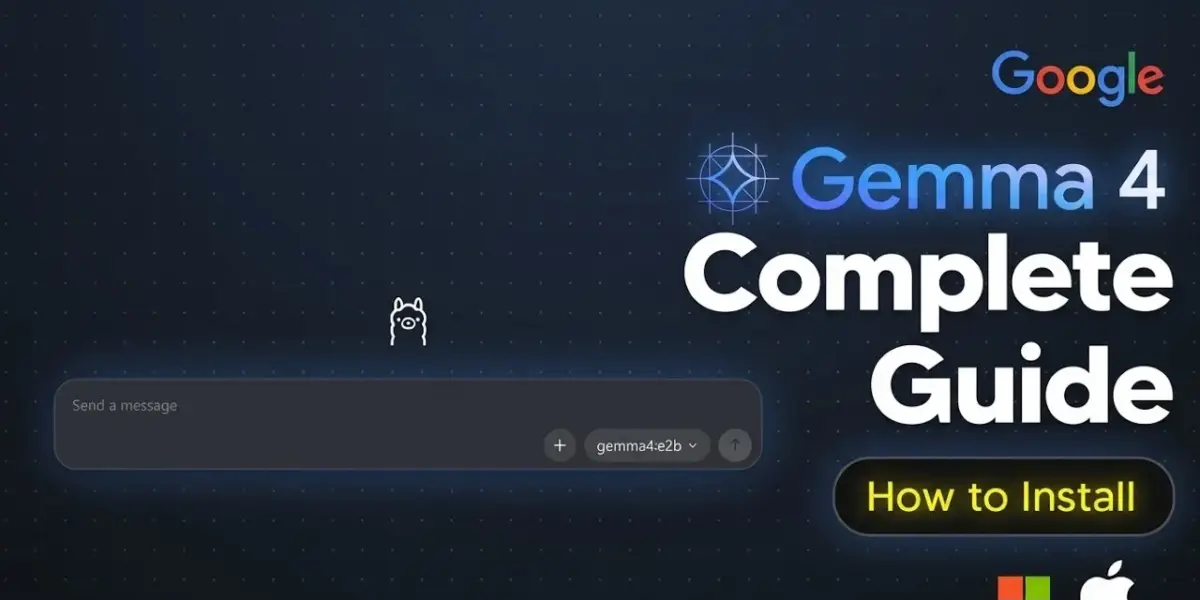
Google’s Gemma AI Runs Locally on Your PC
Google has released Gemma, a family of AI models that are designed to be powerful yet small enough to run on regular computers. This is a big step because Gemma is Google’s most capable open model released so far. It’s available for anyone to use and modify under a permissive license. The best part? You can download and run it on your own computer for free.
This is exciting news for AI enthusiasts and developers who want to experiment with advanced AI without relying on expensive cloud services or super-powerful hardware. Gemma models are built using the same technology behind Google’s larger Gemini models, but they are much more efficient.
What Makes Gemma Special?
Gemma comes in different sizes, including 2 billion and 4 billion parameters. A parameter is like a dial in the AI model that helps it understand and generate information. More parameters often mean a smarter AI, but also a bigger, slower one.
One of Gemma’s most impressive versions is a 26 billion parameter model that uses a clever technique called “mixture of experts.” This means it only uses about 3.8 billion parameters when it’s actually working to give you an answer. There’s also a 31 billion parameter dense model that performs incredibly well. It even ranks very high on AI leaderboards like Arena AI, beating models that are much, much larger.
These Gemma models can handle complex tasks. They can plan steps to solve problems, and they can even understand and process images and videos. This makes them very versatile tools.
How to Install Gemma Locally with Ollama
The easiest way to get Gemma running on your computer is by using a tool called Ollama. Ollama makes it simple to download and run AI models locally. You can download Ollama for Windows, Mac, or Linux directly from their website.
Once Ollama is installed, you can open its application. If you want to chat with an AI, you’ll often find options to select different models. While Gemma might not appear immediately in the basic chat window, it will soon be available.
To download and run Gemma, you’ll use your computer’s command line or terminal. It’s a straightforward process. You’ll type a command like ollama run gemma. Ollama will then download the necessary files for the model.
Understanding VRAM and Model Sizes
A key consideration when running AI models locally is your computer’s graphics card memory, known as VRAM. Different Gemma models require different amounts of VRAM.
For example, the smaller Gemma models, like the 2 billion parameter version (which takes up about 7.2 GB of space), can run on most modern graphics cards. If your GPU has 12 GB of VRAM or more, like a GeForce RTX 3060 or 4060, you should be able to run these smaller Gemma models smoothly.
However, the larger Gemma models, especially the 31 billion parameter version, need much more VRAM. Unless you have a high-end card like an RTX 4090 with 24 GB of VRAM or more, these larger models might run very slowly because they’ll have to use your computer’s main processor (CPU) instead of the faster GPU.
Checking Your VRAM
Before downloading a large model, it’s wise to check how much VRAM your graphics card has. You can do this by opening your computer’s command prompt (type cmd in the Windows search bar) and typing nvidia-smi. This command will show you your GPU model and how much memory is available.
Alternatively, you can open Task Manager (Ctrl+Alt+Delete, then select Task Manager) and go to the GPU tab. This will give you a clear view of your VRAM usage and total capacity.
If your computer doesn’t have enough VRAM for the model you want to run, don’t worry. You can rent GPU power from cloud services for a small fee, which is often much cheaper than paying for large AI service subscriptions.
Running Gemma Locally: A Practical Example
Let’s say you want to run the Gemma 4 2B model. You would open your terminal and type ollama run gemma:2b. Ollama will download the model, which might take some time depending on your internet speed.
Once downloaded, you can interact with the model directly in the terminal. You can ask it questions, and it will respond. For instance, you could ask, “Hello, how can I help you today?” The model will then reply, ready for your next instruction.
Testing Gemma’s Capabilities
The Gemma models are not just good at text. They can also process images. Imagine you have a picture of a car. You can show this image to Gemma and ask, “What does the image show?”
Gemma can analyze the image and describe it. For example, it might say, “It shows a bright yellow sports car on a street scene with public transport, architecture, and storefronts.” It can even read details like license plates. If you show it a picture with a license plate that reads “LC18 MCL,” Gemma can correctly identify it.
Running Larger Models with Cloud GPUs
For those who want to run the most powerful Gemma models but lack the necessary VRAM, using a rented GPU is a good option. This can cost just a few cents per hour.
The process involves setting up a virtual machine with a powerful GPU, like an NVIDIA 5090. You would then install Ollama on this virtual machine and run the larger Gemma models, such as the 31 billion parameter version, using commands like ollama run gemma:31b.
This allows you to access cutting-edge AI capabilities at a fraction of the cost of traditional cloud AI services. It also ensures your data remains private since the model runs on your controlled environment.
Why This Matters
Google’s release of Gemma and the ease of running it locally through tools like Ollama democratize access to advanced AI. Previously, running powerful models required significant investment in hardware or expensive cloud subscriptions.
Now, developers, researchers, and even hobbyists can experiment with sophisticated AI on their own machines. This fosters innovation and allows for more personalized AI applications. Being able to run these models locally also means better privacy and security, as your data doesn’t need to be sent to external servers.
Uninstalling Gemma
If you decide you no longer need a Gemma model or want to free up space, uninstalling is simple. First, list all the models you have installed by typing ollama list in your terminal. Then, note the ID of the Gemma model you want to remove.
Finally, type ollama rm <model_id>, replacing <model_id> with the actual ID of the model. This will remove the model from your system.
Source: How To Install Gemma 4 – How To Download Gemma 4 Locally (Ollama) (YouTube)

Related Articles


Google’s AI Slashes Memory Needs, Speeds Up Performance
Google's new TurboQuant technique promises to drastically cut the memory needed for AI models, potentially making them cheaper and faster to run. Early tests show significant memory savings and speed improvements, though the full impact is still being evaluated.

Google Rewrites News Headlines with AI, Sparks Outrage
Google's use of AI to rewrite news headlines in its Discover feed and search results is drawing heavy criticism from journalists. The practice risks misinforming readers and undermining news credibility. Google claims it's for better user engagement, but concerns about accuracy and trust are mounting.


OpenAI’s Lead Evaporates As Rivals Surge Ahead
OpenAI, once the leader in AI, is losing ground to rivals Anthropic and Google. Facing declining market share, massive financial losses, and a loss of public trust, the company's future is uncertain. Meanwhile, Anthropic focuses on enterprise, and Google pushes multimodal AI, positioning themselves for long-term dominance.