Google Flow Unleashes AI Creative Studio for Images and Video
Google Flow, a new AI creative studio, integrates advanced image and video generation models like VO 3.1 and Nano Banana 2, powered by Gemini. It offers a credit-based system for users, with free daily credits and paid tiers for more extensive use. The platform allows for complex editing, precise object manipulation, and streamlined video creation.

Google Flow Launches Powerful AI Creative Suite
Google has officially launched Flow, a new AI-powered creative studio designed to generate and edit images and videos. This platform brings together several of Google’s advanced AI models into a single, user-friendly interface. Flow aims to simplify the creative process for users, allowing them to bring their ideas to life with AI assistance.
Core AI Models Powering Flow
At the heart of Google Flow are three key AI models:
- VO 3.1: This is Google’s video generation model. It takes text descriptions, known as prompts, and turns them into short video clips. Think of it as the engine that drives your video creations from simple text ideas.
- Nano Banana 2: Evolved from Google’s Imagen model, this is the image generation powerhouse. It creates highly detailed and realistic images. These images can be used on their own or as building blocks for video projects.
- Gemini: While not directly generating content, Gemini works behind the scenes. It helps make the prompting process more natural. Gemini allows Flow to understand everyday language, making it easier for users to describe what they want.
This integrated approach means users no longer need to juggle multiple tools. Flow consolidates these powerful AI capabilities, making it a comprehensive solution for digital content creation.
Understanding Google Flow’s Pricing and Credits
Google Flow operates on a credit system, which is important to understand before diving in. The cost of generating images and videos depends on the models used and the quantity produced.
Free Tier and Paid Plans
- Free Account: Users with a free Google account receive 50 free credits each day. While this allows for testing the platform, these credits are limited and do not roll over.
- Google AI Pro: This plan costs around $20 per month and provides 1,000 monthly credits. It offers a good balance for regular users.
- Google AI Ultra: For intensive users, this plan offers 25,000 monthly credits. Pricing for this tier is around $200 to $250 per month, making it suitable for professionals generating a high volume of content.
It’s crucial to check the credit cost for each generation, as Google may update these prices. The platform displays the credit cost before you generate content, helping you manage your usage.
Credit Costs Explained
The number of credits used varies significantly. Generating images is generally less expensive than creating videos. For instance, some image generations might even be free on certain tiers. Video generation, however, uses more credits. A single video generated with VO 3.1 fast might cost around 10 credits, while a higher-quality version could cost 100 credits.
The cost also depends on the specific model version. For example, VO 3.1 fast is cheaper and quicker than VO 3.1 quality, which offers higher fidelity but consumes more credits. Users are advised to double-check costs to avoid unexpected credit depletion.
Credit Rollover and Top-Ups
Credits do not roll over from month to month, meaning users must use their allocated credits within the billing cycle or lose them. If you run out of credits, you can purchase additional top-up credits, which are valid for 12 months from the purchase date.
Interestingly, free users get 50 credits daily, totaling 1,500 per month, which is more than the 1,000 credits in the Pro tier. However, the free credits don’t accumulate, preventing users from saving them for large projects. Upgrading to a paid plan forfeits any remaining free credits.
Users may experience throttling on Nano Banana 2 image generations after about 100 images per day, regardless of their plan.
Navigating the Google Flow Interface
Upon opening Flow, users will see a grid displaying their previous projects. These projects can be easily renamed for better organization. Starting a new project is straightforward.
Image Generation and Editing
Within a project, users can generate media or upload their own. To start with images, simply upload an image or use a text prompt.
Editing Capabilities:
- Transform to Video: An uploaded image can be quickly turned into a video prompt with the ‘animate’ feature.
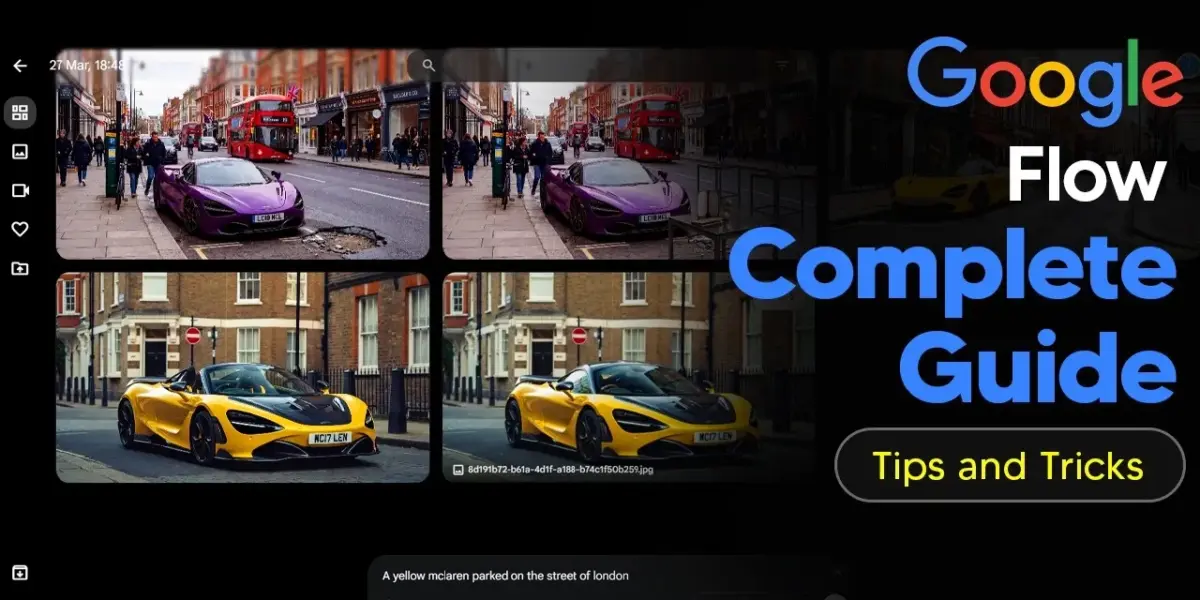
- Iterative Editing: Images can be refined using Nano Banana 2. For example, you can ask to make a car a convertible or change its color.
- Prompting from Scratch: Generate multiple image variations simultaneously by specifying the number of generations desired. Images generate in parallel, allowing for quick ideation.
- Upscaling: Generated images can be upscaled to 4K for higher quality. Users should avoid scheduling multiple upscaling jobs at once.
- Precise Object Manipulation: Users can select specific areas of an image to edit. This allows for tasks like removing an object or adding a new detail, such as a pothole, in a precise location. The lasso tool offers even finer control for editing specific parts of an image.
- Draw Feature: For more direct control, a drawing tool allows users to sketch shapes or elements that the AI can then interpret and generate. However, accuracy with the sketch-to-generation feature can vary.
All generated or edited images should be saved to the project to ensure they are not lost when exiting the workspace.
Video Generation and Refinement
Creating videos involves similar steps:
- Animating Images: Use the ‘animate’ function on an image to create a video prompt.
- Model Selection: Choose between VO 3.1 fast for speed and lower cost, or VO 3.1 quality for higher fidelity and better physics, albeit at a higher credit cost. Generating multiple variations (e.g., three clips) helps in ideation and selecting the best outcome.
- Reviewing Videos: Videos can be viewed in full screen. If a generation isn’t satisfactory, it can be regenerated. Hovering over multiple video clips allows for quick previews without needing to open each one individually.
- Controlling Start and End Frames: For more precise control, users can select specific images as the start and end frames for a video. This allows for directing the video’s motion and focus, such as panning to a specific detail like a license plate.
- Camera Actions: Flow offers pre-set camera motions like ‘dolly in/out’ or ‘orbit up’. These can be applied to extend or modify scenes, offering advanced control over the video’s perspective. The cost of these actions is visible.
- Upscaling Videos: Standard video upscaling is free, while 4K upscaling costs credits and takes time.
- In-Video Editing: Users can insert elements, like a butterfly flying across the screen, directly into a video. They can also remove existing objects, such as a car, from a scene. Videos can also be extended to create longer sequences.
Saving specific frames from a video as images is also possible, aiding in ideation and further editing.
Advanced Features and Navigation
Google Flow includes several features to enhance the user experience and workflow:
Project Management and Search
- Renaming Assets: Renaming generated images and videos is crucial for managing large projects.
- Auto-Generated Names: Flow automatically generates names for assets, which can be useful if users forget to rename them.
- @ Mention Feature: A powerful new feature allows users to reference specific assets (images or videos) directly within prompts using the ‘@’ symbol. This is particularly useful for building complex scenes by combining multiple elements, like characters, vehicles, and landscapes, in a single prompt. For example, a user can prompt ‘@Michael driving his @mega truck in @fantasy landscape’.
- Filtering and Sorting: Projects and assets can be filtered by date (oldest/newest), favorites, type (images/videos), and aspect ratio.
- View Options: Users can adjust the display size of project grids (small, medium, large) and view content in batches. Tile details (text descriptions) can be toggled on or off.
Scene Builder and Ingredients
Flow offers a ‘Scene Builder’ for more complex filmmaking. Users can add video clips to scenes, allowing for more intricate composition. The ‘Ingredients’ feature is useful for creating backgrounds or scenes by using multiple images as references, though it can be less precise for specific subjects.
Cross-Project Asset Search
Users can search for and utilize assets from their other projects within the current workspace, streamlining the process of reusing elements across different creative endeavors.
Why This Matters
Google Flow represents a significant step forward in making advanced AI creative tools accessible. By integrating powerful image and video generation models with an intuitive interface and intelligent prompting assistance from Gemini, Flow lowers the barrier to entry for content creators. The platform’s ability to handle complex edits, offer precise control over generated media, and facilitate rapid iteration makes it a compelling tool for professionals and hobbyists alike. The credit-based system, while requiring careful management, provides a flexible framework for accessing these capabilities. Flow’s unified approach is poised to influence how digital content is created, offering a glimpse into the future of AI-assisted creativity.
Source: Google Flow Tutorial (How To Use Google Flow) 2026 (YouTube)

Related Articles


Global Crisis Looms: US Debt, AI, and Digital Control Grid
Escalating global tensions and the closure of the Strait of Hormuz point towards a potential economic crisis. Experts warn that U.S. debt levels, combined with AI advancements, could lead to a new digital financial control system where corporations distribute U.S. debt via digital wallets, posing significant risks of financial control.


NVIDIA Unveils Free, Open AI Model
NVIDIA has launched Nemotron 3 Super, a powerful AI assistant that is completely free and open-source. It matches the performance of top proprietary models from a year ago but is significantly faster, especially with its NVFP4 version. This release democratizes access to advanced AI technology.


AI Will Plan Your Trips with Google Maps
Google's new 'Ask Maps' feature uses AI to help plan your life, while a tech policy expert argues cookie banners are broken and should be removed. Learn about the future of AI-powered navigation and the debate over online privacy tools.