Claude AI Now Works Directly Inside Excel
Claude AI is now integrated directly into Microsoft Excel via a new sidebar add-in. This tool allows users to generate spreadsheets, analyze data, fix errors, and extract information from documents without leaving Excel. While powerful, users must be aware of data privacy and the potential for AI errors.

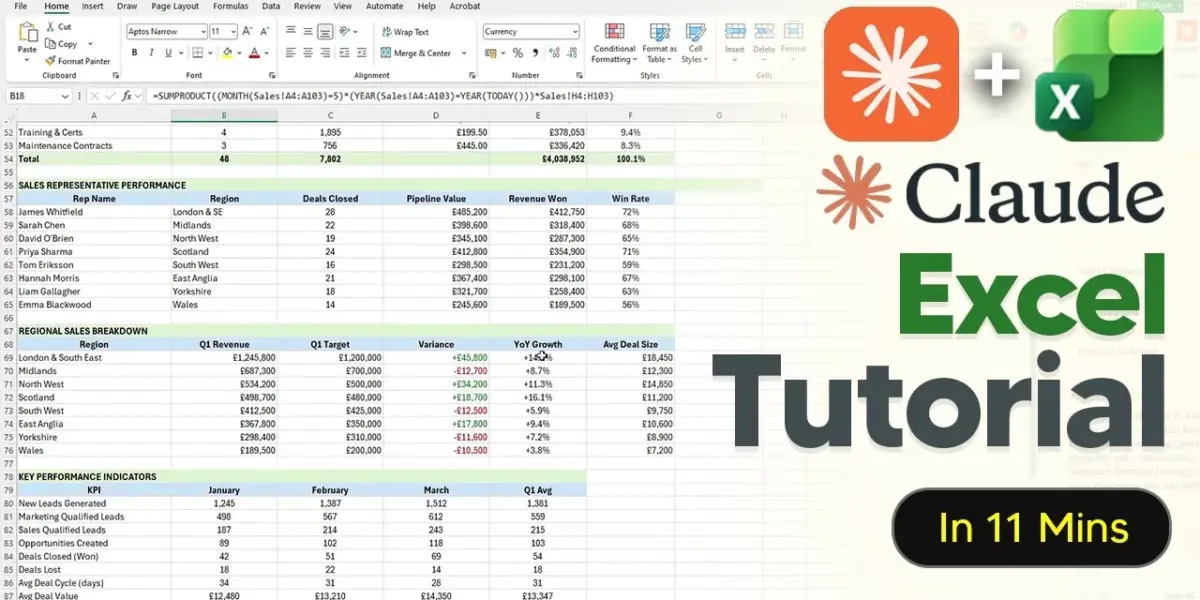
Claude AI Now Works Directly Inside Excel
A new add-in brings the power of Claude AI directly into Microsoft Excel, allowing users to interact with spreadsheets in a completely new way. This tool is not like pasting screenshots into a chatbot. Instead, it can read your actual Excel workbook, understanding every cell, formula, and how different parts of your sheet connect.
While still in a testing phase, this Claude add-in offers capabilities far beyond simply uploading an Excel file to a standard AI chatbot. When you upload a file to a regular chatbot, it often turns your data into plain text, losing the structure, formulas, and cell references that make spreadsheets work. This new sidebar add-in, however, can directly edit your spreadsheet, provide sources for its information within specific cells, and perform complex tasks.
Getting Started with Claude in Excel
To use this powerful new tool, you’ll need a Claude Pro subscription, which costs around $20 per month, or a Team or Enterprise plan. This add-in uses your existing Claude account and doesn’t have a separate cost. It works within your normal Claude usage limits, so you’ll be using the same login information. The add-in currently uses Claude’s Opus 4.6 and Sonnet 4.6 models.
Installation Steps
Installing the add-in is straightforward. First, open Excel and go to the ‘Home’ tab. Click on ‘Add-ins’ and then search for ‘Claude’. You should see ‘Claude by Anthropic’ appear, which you can then add to your Excel. If you can’t find it there, you can also visit the Microsoft AppSource marketplace and download ‘Claude for Excel’. Make sure you sign in with the correct Microsoft account when prompted.
Once installed, a Claude icon will appear in the top-right corner of your Excel window. Clicking this opens the sidebar. You’ll likely need to sign in with your Anthropic account to connect it.
Essential Settings and Safety Tips
Before you begin using Claude in Excel, it’s wise to adjust a few settings. In the Claude sidebar, go to ‘More options’ and then ‘Settings’. Turning on ‘Session logging’ is highly recommended. This feature shows you exactly what changes Claude has made to your workbook, which is crucial if something changes unexpectedly. It helps you track the AI’s actions.
For security, always back up your Excel file before letting Claude make significant changes. If the AI makes unwanted modifications, having a backup ensures you don’t lose your work. You can also use the keyboard shortcut Ctrl+Alt+C to quickly show or hide the Claude sidebar, which is helpful for frequent users.
Putting Claude to Work: Examples
Claude’s capabilities within Excel are impressive. You can ask it to create complex spreadsheets from scratch. For instance, you could prompt it to build a small business sales and expense tracker, specifying sheets like ‘Expenses’, ‘Sales’, and ‘Summary’. Claude can then generate the entire structure, including formulas and dropdown menus for categories like payment methods.
When Claude suggests changes that could significantly alter your workbook, it’s best to use the ‘Allow once’ option instead of ‘Always allow’. This requires you to approve each action, preventing accidental widespread changes if your prompt isn’t perfect. Claude will show you its reasoning for the changes it makes, allowing you to understand how it arrived at its conclusions.
Data Entry and Analysis
Claude can also process data from external documents. You can upload files, like PDFs, directly to the Claude sidebar. If you have a sales report in a PDF, Claude can read it and automatically populate your Excel sheet with the relevant data. It can even handle information that might not fit neatly into your existing Excel structure, adding new categories or columns as needed.
For example, if you have a PDF sales report, Claude can extract figures like revenue by product line and sales representative performance, then input them into your spreadsheet. This saves a tremendous amount of manual data entry time.
Understanding Formulas and Fixing Errors
One of Claude’s most useful functions is explaining complex formulas. If you double-click a cell with a formula you don’t understand, you can ask Claude to explain what it does. It will provide a clear explanation of the calculation, which is invaluable for learning or troubleshooting existing spreadsheets.
Claude can also find and fix errors in your workbooks. If you have a budget report with intentional mistakes, you can ask Claude to identify and correct them. The AI will work through the sheet in real-time, fixing values and equations, making it a powerful tool for data cleaning.
Data Cleaning and Visualization
Messy data is no match for Claude. It can clean up inconsistent information, such as splitting an address column into separate columns for street, city, and postcode. It can also standardize formatting, like converting dates into a consistent year-month-day format.
Furthermore, Claude can help visualize your data. You can ask it to create charts, like a bar chart comparing monthly budgets versus actual spending. In seconds, Claude can generate a visual representation of your data, which can then be resized and customized.
Advanced Formula Creation
For users needing specific calculations, Claude can write custom formulas. If your sheet lacks a ‘total cost’ column, you can ask Claude to create a formula that multiplies quantity by unit cost. It will insert the formula and even highlight the cells it used. You can also ask for more advanced formulas, like one that flags items over a certain value as ‘high priority’.
Limitations to Consider
Despite its impressive abilities, Claude in Excel has limitations. It is not a replacement for human expertise. AI models can sometimes make mistakes or ‘hallucinate’ incorrect information. It is crucial to verify the data, especially in high-stakes situations where decisions depend on accuracy. Anthropic does not guarantee that its models will never hallucinate.
For highly sensitive or regulated data, caution is advised. Your data is sent to Anthropic’s servers and may be stored for up to 30 days. This means sensitive information like financial details, customer data, or employee salaries should be handled with care. Team and enterprise plans do not currently override these data retention policies for the Excel add-in.
Additionally, Claude cannot handle VBA (Visual Basic for Applications) code or macros. It cannot write, read, or execute VBA scripts. Finally, there is no chat history preserved between sessions. Each time you reopen the add-in, it starts as a fresh conversation, so you’ll need to re-establish context if you close and reopen Excel.
Source: How To Use Claude In Excel – (Claude Excel Tutorial) 2026 (YouTube)

Related Articles


High Energy Costs Threaten Trump Agenda, Economist Warns
High energy prices are a major concern for the U.S. economy, potentially derailing the current administration's agenda despite positive GDP growth and rising wages. While tax cuts and deregulation provide support, global conflicts and their impact on oil markets create significant uncertainty for businesses and consumers.


AI’s ‘Mythos’ Model Sparks Financial Security Fears
Advanced AI models like Anthropic's 'Mythos' are raising alarms among financial leaders due to potential cybersecurity risks. While OpenAI prepares its 'Spud' model, experts like Nicholas Carlini highlight Mythos's ability to find and chain software vulnerabilities, surpassing human researchers. This development prompts urgent discussions about securing financial markets against sophisticated AI-driven threats.


Nvidia Fuels AI Race: $2B Bets Spark Tech Stock Surge
Nvidia's $2 billion investments in AI firms Nebius and Marll Technologies are driving significant market interest. Meanwhile, Microsoft's stock nears a key technical level, signaling a potential buying opportunity. These developments, alongside breakthroughs in AI memory compression and SpaceX's ambitious expansion plans, are reshaping the tech landscape for investors.